Checking Your Version for Excel 365
If you have been asked to confirm your Excel version to confirm the suitability of Excel 365 courses, please follow the instructions below.
For PC Users
Step 1
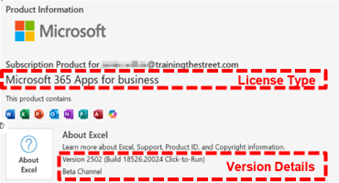
With Excel open, go to the file tab of the ribbon and then select “Account”. Depending on your screen size, you may need to select “More” and then “Account”.
Step 2
On the panel that appears, please provide the License Type and Version Details (seen in the images below) to your TTS contact:
For Mac Users:
Step 1
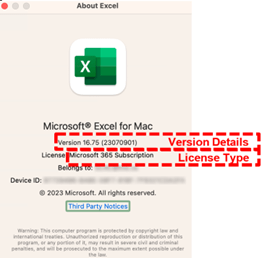
With Excel open, go to the Excel menu (in the top menu bar) and then select “About Excel”
Step 2
In the window that appears, please provide the License Type and Version Details (seen in the images below) to your TTS contact: