
Phantom Links in Excel: How to Find and Remove Them
You open a workbook and Excel asks whether to update links to another file. You click into Edit Links, see a reference you don’t recognize, and try to break it. The dialog says the link is gone. You close the file, reopen it, and the prompt appears again. The link is still there.
This is a phantom link. It’s an external reference that persists somewhere in the workbook even though there’s no obvious formula pointing to another file. They’re common in models that have been copied, restructured, or built collaboratively over time, and they’re genuinely annoying to track down because they can hide in places most analysts never think to check.
The approach has two parts: first, exhaust the list of places real links hide before concluding the link is truly phantom. Then, if nothing turns up, use one of three removal methods to force it out.
First: Rule Out Real Links
Before treating a link as phantom, check every location where an external reference could legitimately live. Skipping this step wastes time on removal methods that won’t work if the link is still active somewhere.
Formulas
The most obvious place. Go to Edit > Links (or Data > Edit Links in newer versions) to see all external references Excel has detected. From there, use Ctrl+F to search the workbook for the linked file name. Search in formulas, not values, and make sure the scope covers the entire workbook. If a formula contains a reference to an external file, the file path will appear in brackets within the formula text.
Defined Names
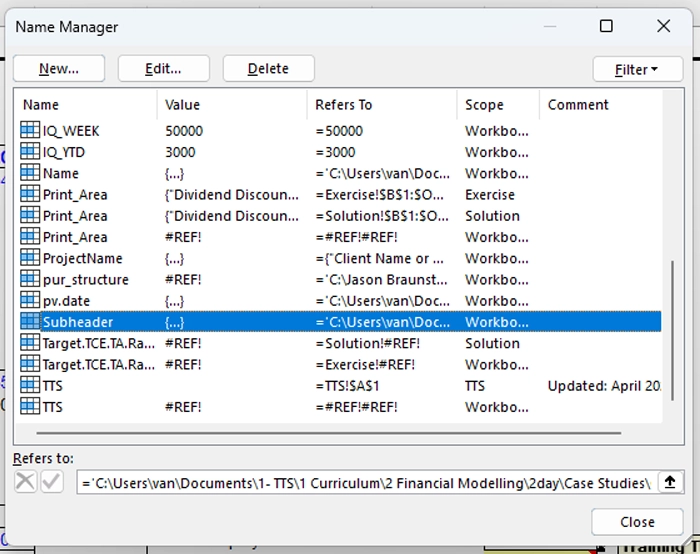
One of the most common hiding spots. Open the Name Manager (Ctrl+F3) and scroll through every defined name in the workbook. Check the Refers To column for any entry that contains a path to an external file. Names that were created in another workbook and then copied in will often carry their original file reference with them. Delete or correct any that point outside the current file.
Charts
Chart data ranges and axis labels can hold external references that don’t show up in formula searches. Click into each chart, then check the data series source via the Select Data dialog. Look at both the series values and the axis label ranges. If any reference points to another file, update it to reference the current workbook.
Objects
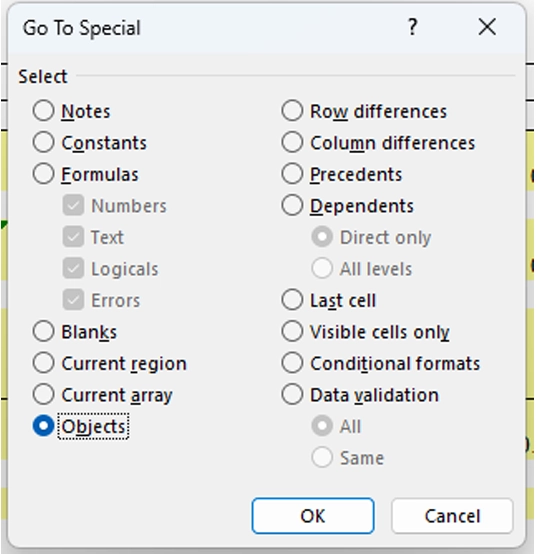
Text boxes, shapes, and other drawing objects can contain linked content that’s easy to miss. Press F5 (Go To), click Special, and select Objects. This selects every object on the active sheet. Click through them individually and check whether any contain external references in their formula bar.
Data Validation
Validation rules that use list sources from another file will maintain an external link even if no formula references that file. Go to Data > Data Validation and check the Source field for each rule. If any source points to an external range, replace it with a local named range or a direct cell reference within the workbook.
Conditional Formatting
Formatting rules based on formulas can reference external files. Open the Conditional Formatting Rules Manager (Home > Conditional Formatting > Manage Rules), set the scope to the entire workbook, and review each rule’s formula for external file paths.
Hidden Worksheets
Links on hidden sheets won’t surface in a normal formula search. Go to Format > Sheet > Unhide to reveal any hidden tabs, then search each one for external references. It’s worth checking very hidden sheets too: those can only be revealed through the VBA editor (Alt+F11), where sheets with a Visible property set to xlSheetVeryHidden won’t appear in the standard Unhide menu.
Removing Phantom Links in Excel
If you’ve worked through every location above and the link persists, it’s genuinely phantom. Excel is holding a reference it can’t resolve and won’t release through normal means. Three methods work, in escalating order of effort.
Method 1: Redirect the link to itself
Open Edit Links (Data > Edit Links), select the phantom link, and click Change Source. Navigate to the current workbook and select it. You’re telling Excel to point the link at itself rather than the external file. Save, close, and reopen. In many cases this satisfies whatever internal reference was holding the link and it disappears on the next open.
Back up the file before doing this. Redirecting a link to the wrong source can change cell values silently.
Method 2: Create a real link, then delete it
This sounds counterintuitive, but it works. Open both the current workbook and the file it’s linking to. In the current workbook, create a formula that genuinely references a cell in the external file. Save both files. Now delete that formula and break the link via Edit Links. Save, close, and reopen the current file.
The logic: Excel sometimes needs a clean link-and-break cycle to release a reference it can’t properly identify. Establishing a real connection gives it something concrete to break.
Method 3: Isolate by deletion
Use this when the first two methods fail. It’s methodical but reliable.
- Back up the workbook.
- Delete half the content in the file (start with a full sheet or a large range).
- Save, close, and reopen. Check whether the phantom link prompt still appears.
- If the prompt is gone, the link was in the deleted section. Restore from backup, narrow to that section, and repeat.
- If the prompt remains, the link is in the other half. Delete the next section and test again.
- Continue until you isolate the specific range or object containing the reference, then rebuild just that section cleanly.
This takes time, but it will find a phantom link that every other method misses. The key discipline is closing and reopening the file after every deletion step. Checking Edit Links without reopening doesn’t give an accurate result.
Where Phantom Links Hide: Quick Reference
| Location | How to Check |
|---|---|
| Formulas | Ctrl+F, search for the file name in formulas across the entire workbook |
| Defined Names | Ctrl+F3, review the Refers To column in Name Manager |
| Charts | Click each chart, check Select Data for external series sources |
| Objects | F5 > Special > Objects, check formula bar for each |
| Data Validation | Data > Data Validation, check Source field for external paths |
| Conditional Formatting | Home > Conditional Formatting > Manage Rules, review formulas |
| Hidden Sheets | Format > Sheet > Unhide; check xlSheetVeryHidden via VBA editor |
If you want to take this further, these are the two courses worth looking at.
Applied Excel
Become a Master in Excel for Finance
Advanced formula construction, model architecture, shortcuts, data manipulation, and modeling pitfalls. Covers the structural discipline that keeps complex models navigable under pressure.
Mastering Excel Bundle
Self-Paced Excel Training for Finance
Works from Excel fundamentals through to advanced modeling technique. Built for analysts who want real fluency, not just familiarity with the basics.
Includes three modules