
Custom Number Formatting in Excel
There’s a temptation, when building a model, to just type “10.0x” directly into a cell. It looks right. The problem is that Excel now treats that cell as text. You can’t run calculations on it, it won’t aggregate correctly, and any formula referencing it will likely break. The display is fine. The underlying data is broken.
Custom number formatting solves this. You keep the raw number in the cell, and tell Excel exactly how to display it. The value stays numeric. The presentation looks however you want.
How the Format Code Works
Every custom format follows the same structure:
Positive ; Negative ; Zero ; TextEach section separated by a semicolon controls how Excel displays that type of value. You don’t need to fill in all four. If you only enter one section, it applies to everything. Two sections covers positives and negatives. Three covers positives, negatives, and zeros.
You can also prepend color codes to any section. Wrapping a color name in square brackets, like [Red], tells Excel to apply that color to values matching that section. A handful of colors work this way: Black, White, Red, Green, Blue, Yellow, Cyan, and Magenta.
Opening the Format Cells Dialog
Ctrl+1 opens the Format Cells dialog directly. From there, go to the Number tab, scroll to the bottom of the Category list, and select Custom. You’ll see a Type field where you enter the format code, and a preview showing how the active cell will look.
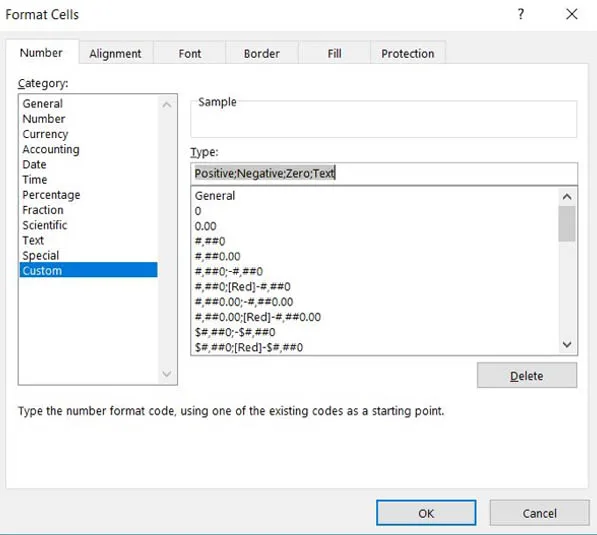
Example 1: Currency With Conditional Color
A common use case in financial models: you want positive values to show with a dollar sign, negative values in red parentheses, and zeros displayed as a dash rather than 0.
Start with a data table like this:
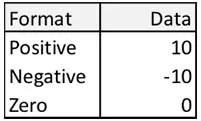
Open the Format Cells dialog (Ctrl+1), navigate to Custom, and enter the following in the Type field:
$0.0;[Red]($0.0);"-"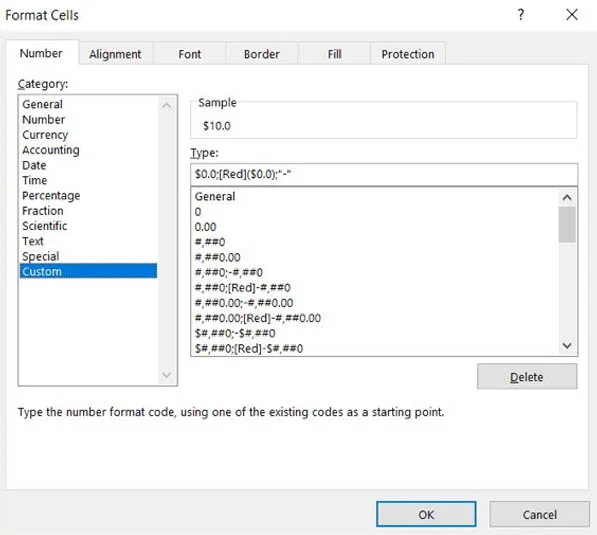
Breaking that down: the first section ($0.0) formats positive numbers with a dollar sign and one decimal place. The second ([Red]($0.0)) wraps negatives in parentheses and turns them red. The third ("-") replaces zeros with a dash.
The result:
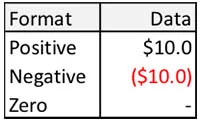
The underlying values haven’t changed. Excel is just displaying them differently.
Example 2: Adding Text to Numbers
This is where custom formatting earns its keep for valuation work. P/E multiples, EV/EBITDA, days outstanding. These all need a label attached to the number, but the number still needs to behave like a number.
Say you have a table of P/E multiples:
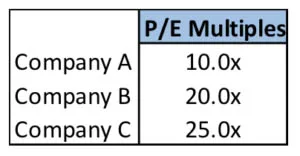
Rather than typing “10.0x” and losing the numeric value, enter 10 and apply this custom format:
0.0Or if you want a space between the number and the label:
0.0 "days"Text characters enclosed in quotes are treated as literal display text. The number in the cell stays numeric.
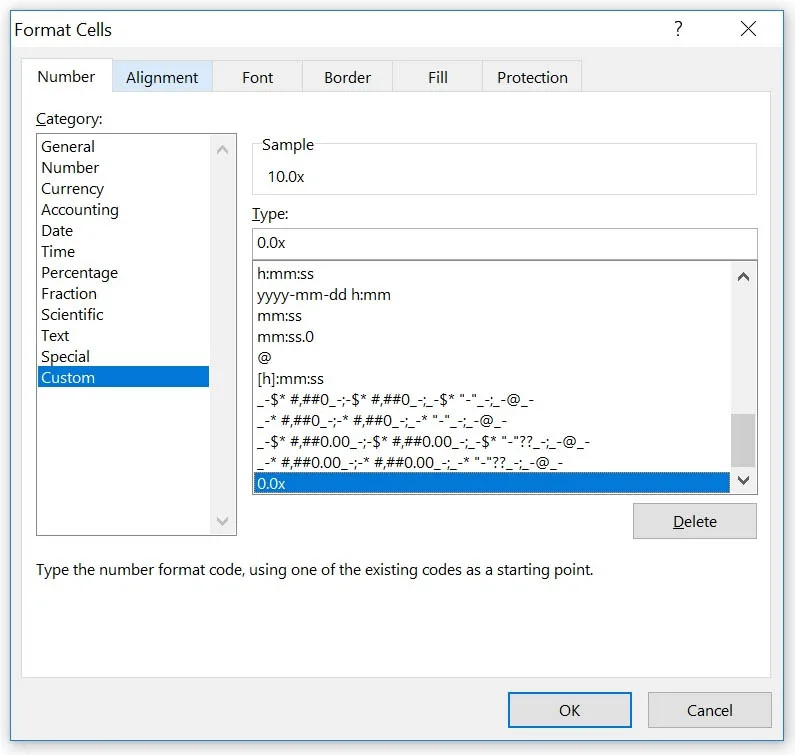
This matters in models where those cells feed into other calculations. A cell displaying “10.0x” via custom formatting will still multiply, divide, and aggregate correctly. A cell where someone typed “10.0x” won’t.
Quick Reference: Common Format Codes
| Purpose | Format Code |
|---|---|
| Dollar, one decimal, red negatives in parentheses | $0.0;[Red]($0.0);"-" |
| Multiple with x suffix | 0.0x |
| Number with text label | 0.0 "days" |
| Thousands separator, no decimals | #,##0 |
| Percentage, one decimal | 0.0% |
| Positive green, negative red | [Green]0.0;[Red]0.0 |
A Note on Scope
Custom number formatting controls display only. It doesn’t change the underlying value, it doesn’t affect how other cells reference this cell, and it doesn’t persist if you paste values elsewhere. If you copy a custom-formatted cell and paste as values only, the destination cell inherits the number, not the format.
That’s by design. The format is cosmetic. The data is what matters.
If you want to go deeper on Excel formatting and the broader set of techniques that keep financial models clean and functional, these are the two courses worth looking at.
Applied Excel
Become a Master in Excel for Finance
Advanced formula construction, model architecture, shortcuts, data manipulation, and modeling pitfalls. Covers the structural discipline that keeps complex models navigable under pressure.
Mastering Excel Bundle
Self-Paced Excel Training for Finance
Works from Excel fundamentals through to advanced modeling technique. Built for analysts who want real fluency, not just familiarity with the basics.
Includes three modules